

If you’re looking to speed up your website, sharpen your visuals, and future-proof your design, the benefits of using SVG (Scalable Vector Graphics) might surprise you.
Many designers still rely on heavy PNGs or blurry JPEGs that lose quality when resized. The result? Slower load times and inconsistent visuals across devices.
But you don’t have to settle for that anymore. By switching to SVGs, you can make your graphics scalable, lightning-fast, and SEO-friendly — all without compromising design quality.
In this guide, we’ll explore nine key benefits of using SVG in web design, along with expert tips, tools, and best practices to get you started.
What Is SVG and Why Does It Matter
SVG stands for Scalable Vector Graphics, an XML-based image format that describes shapes using math rather than pixels.
That means it can scale up or down without losing clarity. Whether it’s a logo, icon, or animated element, SVG stays clear on every screen from mobile devices to 4K monitors.
SVGs are supported by all modern browsers and can even be edited with tools like Inkscape or Vectr. Because they’re code-based, you can style and animate them with CSS or JavaScript for interactive, responsive effects.
💬 Are SVGs accessible for screen-readers?
They can be. Include <title> and <desc> inside SVGs or use aria-labelledby/role Attributes that enable screen readers to present the correct information. Also, provide fallback text where appropriate.
👉 Discover how to image compress your pictures for improved online speed.
8 Benefits of Using SVG in Your Web Design
1. SVGs Are Infinitely Scalable
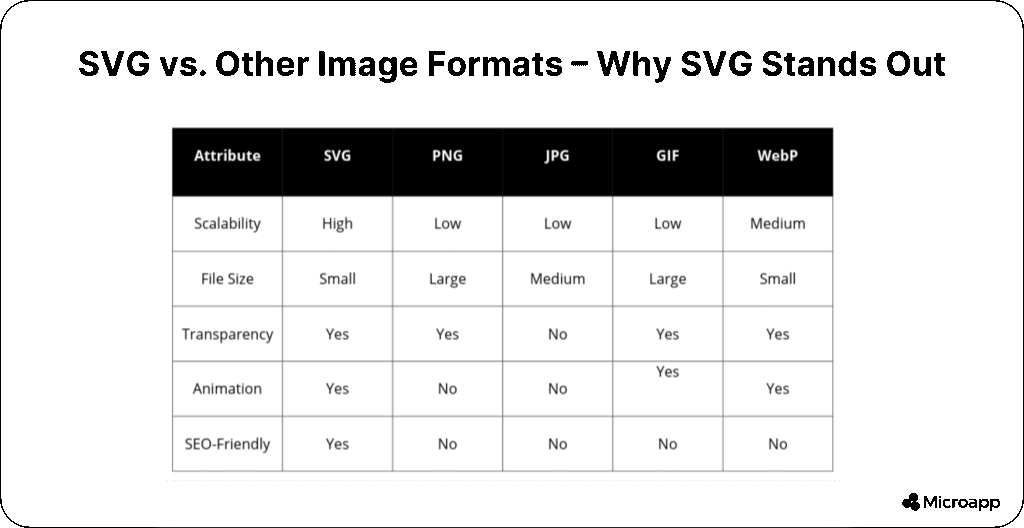
One of the most significant benefits of using SVG is that it never becomes pixelated, regardless of its size. You can scale an SVG logo from a tiny favicon to a billboard graphic, and it will remain sharp and smooth.
This makes SVGs perfect for responsive design, where images must adapt to different screen sizes and densities. You can use one file instead of creating multiple versions at various resolutions.
💡 Tip: Save time by using a single SVG logo file that automatically adjusts for retina screens—no more @2x or @3x PNG headaches.
💬 What is the difference between SVG and PNG?
SVG is vector-based (shape math) and ideal for logos, icons, and illustrations that must scale. PNG is raster-based (pixels) and better for photographs or highly detailed images with complex color gradients. Use SVG for resolution independence; use PNG/JPEG/WebP for photos.
2. SVG Files Load Faster and Improve Website Performance
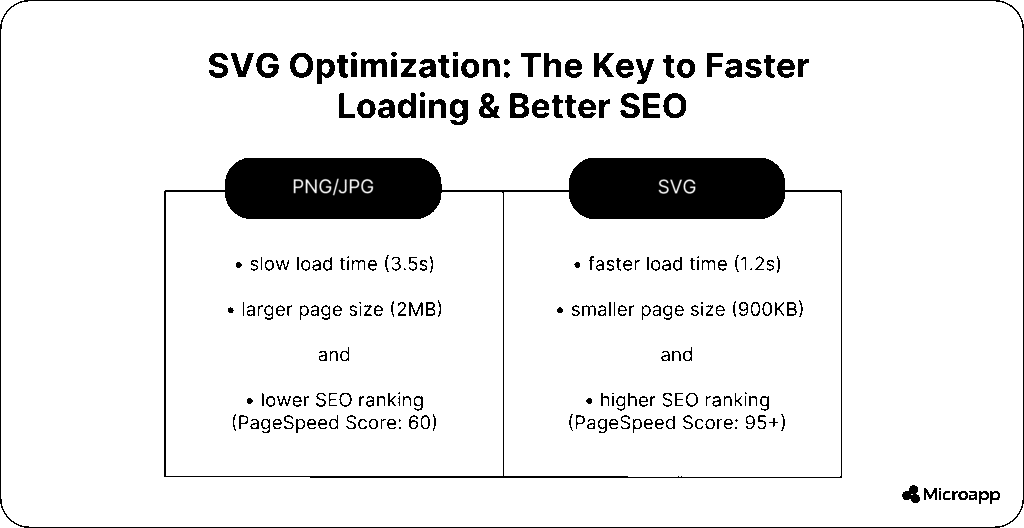
Speed is everything in web design — both for users and SEO. SVGs are typically much smaller than PNG or JPEG files because they store instructions as text, not as millions of colored pixels.
This smaller file size means your pages load faster, improving Core Web Vitals and Google rankings. 💨 Faster load times also mean happier visitors and better conversion rates.
For a more in-depth look, refer to our post on the Pros and Cons of Using SVG Formats, which provides a detailed comparison with raster images.
⚙️ Optimization Tip: Use SVGOMG to compress and clean your SVG files without losing quality.
💬 Will using SVG speed up my website?
Yes, in many cases. Replacing multiple raster images (icons/logos) with SVGs reduces the total asset weight and HTTP requests (especially when combining or inlining SVGs). However, exceptionally complex SVGs can be large — optimization is key.
3. SVGs Are Easy to Style and Animate
SVGs integrate with CSS and JavaScript, letting you style colors, strokes, or even create hover animations directly in code. This opens up creative possibilities, such as animated icons, motion logos, or interactive infographics.
For example, you can use CSS transforms to rotate, scale, or skew elements smoothly. Check out A Complete Guide to CSS Transform Properties to master the basics.
🎨 Creative Tip: Want to make your icons dance? Learn how to animate your SVGs using our CSS Animation Guide.
💬 Can SVG files be animated?
Absolutely. Use CSS animations, Web Animations API, or SVG’s native SMIL (though browser support varies). In many cases, CSS + JS gives the best cross-browser control.
4. Better Accessibility and SEO
Unlike traditional images, SVGs are text-based, meaning search engines can read and index them easily. You can add alt text, titles, and descriptions to improve accessibility for screen readers — a win-win for UX and SEO.
💡 SEO Tip: Always add descriptive <title> and <desc> tags inside your SVG code so search engines understand what the graphic represents.
This accessibility boost also helps your website rank higher because Google prioritizes accessible, high-performing content.
💬 Can Google index SVG files?
Yes. Because SVGs are XML/text, Google can index inline SVG content and any descriptive tags you include. Use descriptive filenames and title/desc Inside the SVG for better discoverability.
5. SVGs Save You Time and Simplify Maintenance
You no longer need to export multiple versions of an image to support different resolutions. With SVG, one file does it all. If you want to change a color or size, you can tweak the CSS or modify the SVG code directly.
That means faster updates, lower storage requirements, and reduced room for human error, which is beneficial for large icon libraries.
💡 Workflow Tip: Manage your SVG icons in a centralized system to update all instances at once, a huge time saver.
6. SVGs Enhance User Engagement With Motion and Interaction
Static images are boring. SVGs let you add micro-interactions and animations that keep visitors engaged.
Whether it’s a button hover effect, a dynamic loading spinner, or a logo that comes to life, SVG motion can bring your interface to life.
Combine your SVGs with CSS or JavaScript to create subtle transitions that enhance the user experience without relying on heavy GIFs or videos.
7. SVGs Integrate Seamlessly With React and Modern Frameworks
If you’re working with React or Next.js, SVGs seamlessly integrate. You can import them as components, manipulate them with props, or even convert them to JSX.
Try our free SVG to React Converter — it automatically transforms your SVG files into reusable React components, saving hours of setup time.
💡 Dev Tip: Inline SVGs give you more control over animations and event handling than using <img> tags.
For more on the process, read How to Convert SVG Files.
8. SVGs Are Future-Proof and Widely Supported
SVG has been around for decades, and its adoption continues to grow.
Every modern browser, including Chrome, Safari, Firefox, and Edge, supports it. As the web moves toward vector-first design, SVG ensures your graphics remain compatible and scalable for years to come.
You can also use SVGs across print and digital media, perfect for brands that want consistent visuals everywhere.
9. Great for Reuse: Icons, Logos, Illustrations & Charts (Benefit #9)
From icon systems to interactive charts, SVGs are versatile. They’re perfect when you want clean vectors, accessible charts, or stylable UI elements that adapt to theme changes (e.g., dark mode).
📊 Use case tip: Use SVG for charts and data visualisation to make them dynamic and responsive without pixel artifacts.
When Not to Use SVG (Know the Limits)
While SVGs offer countless advantages, they aren’t always the right tool.
- Photographs or complex illustrations: Use JPEG or WebP instead — SVGs aren’t efficient for thousands of color gradients.
- Large, intricate vector shapes: These can bloat file size and slow rendering. Simplify paths before exporting.
- Browser quirks: Although rare, older browsers may not fully support advanced SVG filters.
⚙️ Optimization Tip: Use tools like Inkscape or Vectr to simplify paths before exporting your SVGs.
Bonus: How to Optimize SVG for Web Use
You already know the benefits of using SVG, but optimization takes them to the next level. Here’s how to fine-tune your files for performance:
- Clean up code: Use SVGOMG or SVGO to remove unnecessary metadata.
- Use inline SVGs for key visuals: They load faster and let you style elements directly with CSS.
- Add accessibility tags: Include
<title>and<desc>to describe your graphic for screen readers. - Cache smartly: Store commonly used SVG assets (such as icons) in your site’s cache to reduce load time.
- Reuse & combine: Merge icons into a single sprite file to cut down HTTP requests.
Quick Comparison: SVG vs PNG vs Icon Fonts (Decision Table)
| Use case | Best format |
|---|---|
| Logos, icons, simple illustrations | SVG |
| Photographs & complex gradients | PNG/JPEG/WebP |
| Legacy icon sets where styling is not needed | Icon Font (limited) |
| Animations & interactions | SVG (or SVG in JS frameworks) |
Real-World Examples & Quick Workflow
- Replace site UI icons with an SVG sprite or React components — fewer HTTP requests and easier theming.
- Animate a logo on the homepage using CSS transforms.
- Compress SVGs with SVGOMG and keep a version history in your design system.
Ready to Upgrade Your Web Design?
SVGs aren’t just another image format; they’re a more innovative, faster, and more flexible way to bring your website to life.
From seamless scalability to improved SEO and accessibility, the benefits of using SVG can transform how your site looks and performs.
If you’re ready to make the switch, start experimenting today and explore our SVG to React Converter or visit Microapp for other interesting tools to enhance your front-end workflow.
👉 Turn your static images into responsive, animated, and scalable SVGs that make your designs stand out.